Installation

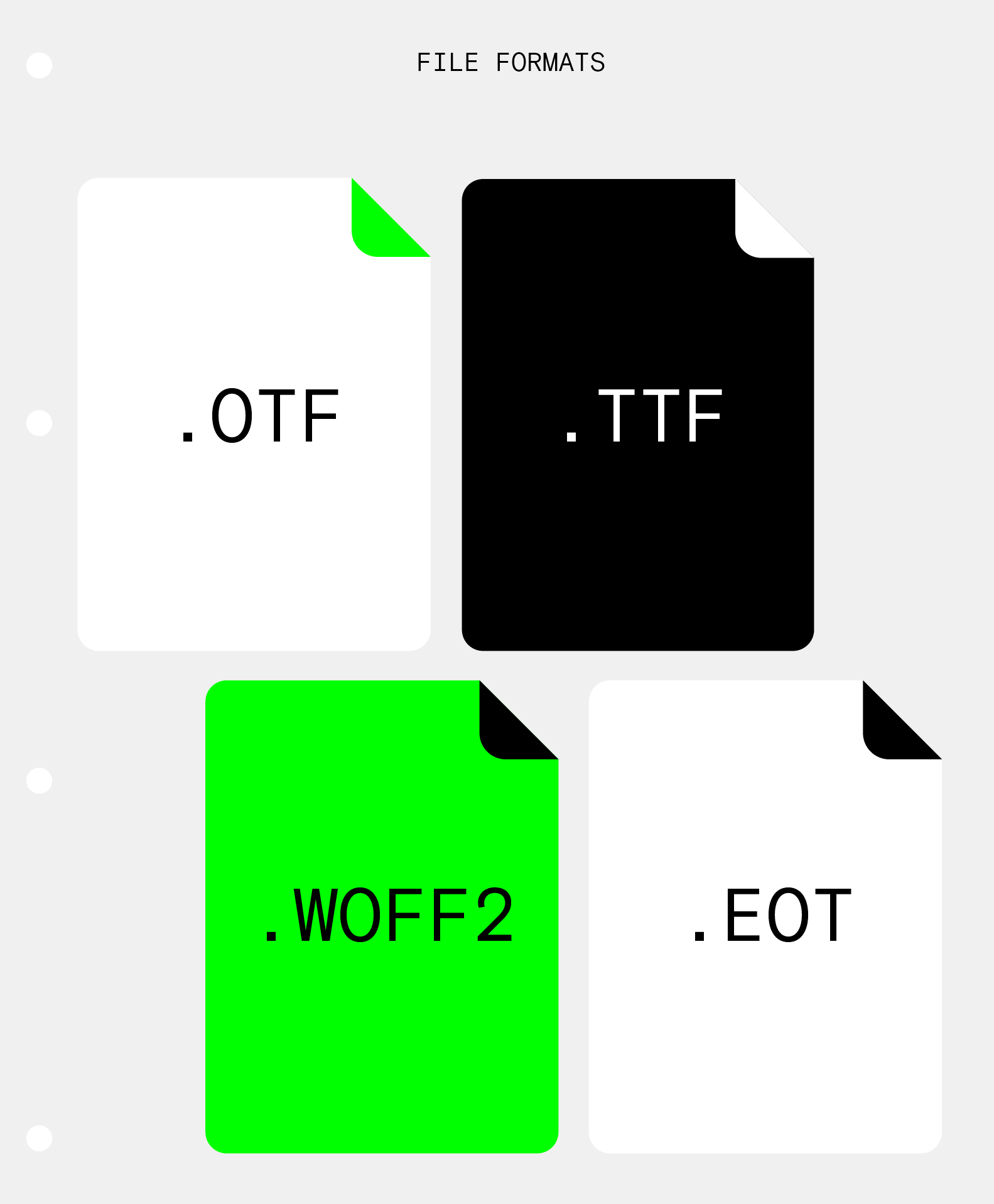
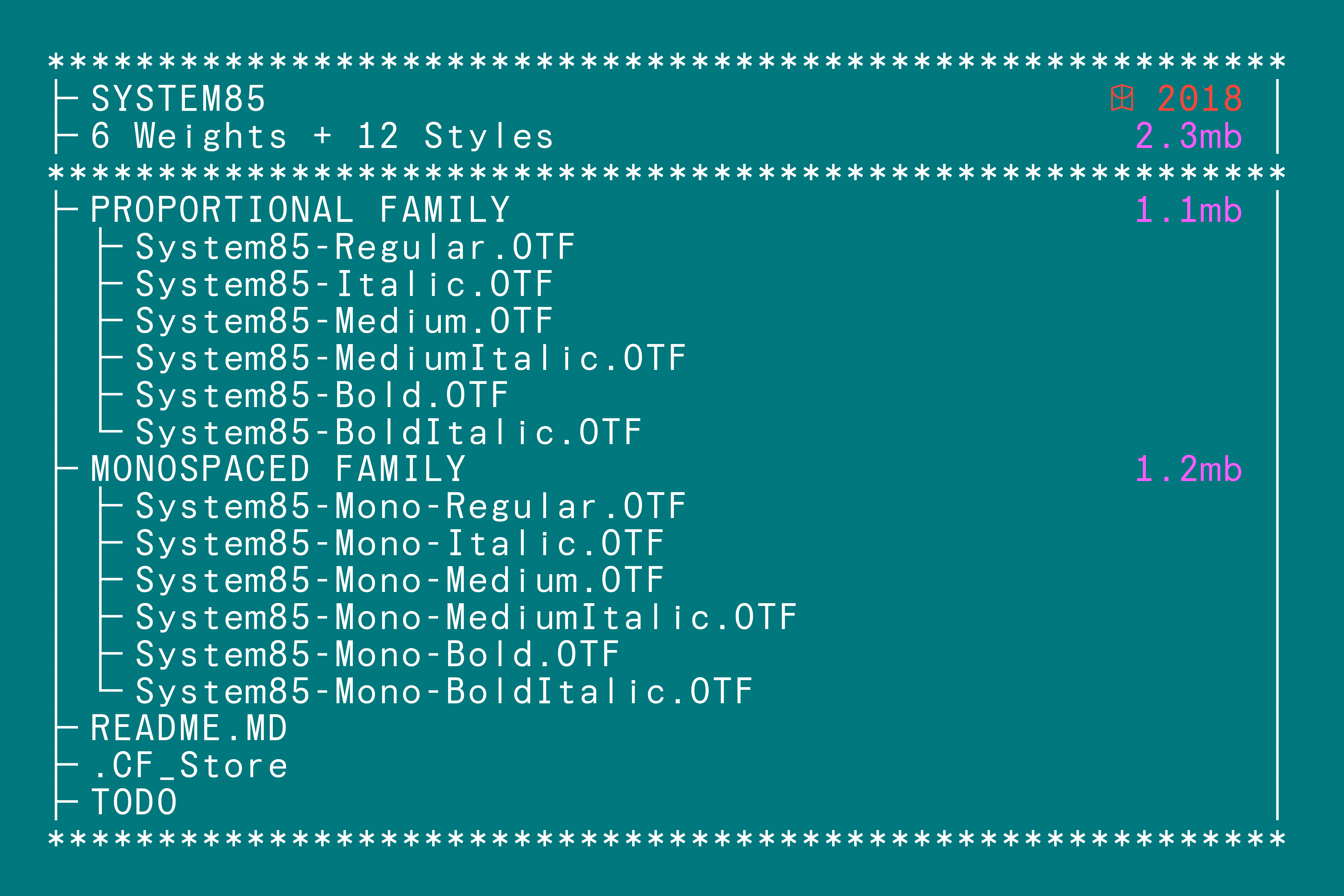
We currently only provide our fonts in OpenType format, which works across multiple platforms.

More information about opentype fonts can be found on the adobe website here.

Mac OSX

Mac OSX natievely supports OpenType fonts.
If you use a font management program to manage your fonts, please follow the instructions for the program to install or remove fonts.

1 – When installing a new font, it is recommended you close all open applications.

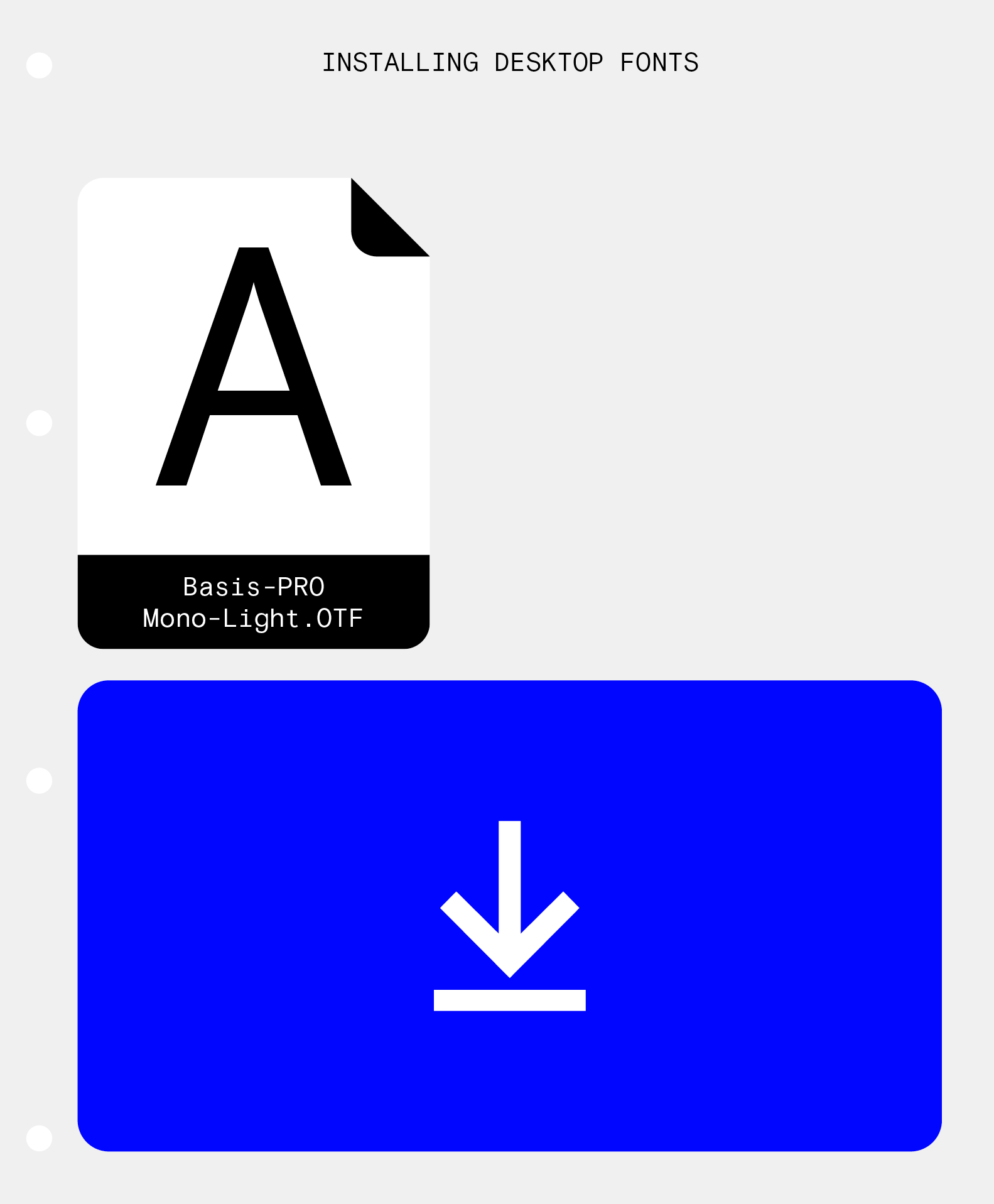
2 – To install, simply drag the OTF file into the fonts folder in the Library folder.

Mac OS 8, 9 or OS X Classic

To install our fonts on one of these systems, requires ATM Light 4.6 or later (4.6.2 For Mac OS X Classic).

Using ATM Light to install fonts:

1 – Before installing any fonts, quit all active applications.

2 – Install your fonts by copying or moving the font files into the System Folder:Fonts folder.

3 – Your fonts will now appear in the font menus of all available applications.

TrueType/Postscript Type 1

At this time we currently only offer our typefaces in OpenType (.otf) format. If you require a font in any other format, please contact us.

Windows 7

1 – To install, simply click on the fonts you wish to install, right click and choose 'Install'.

2 – The fonts will now appear in the font menus of all available applications.

Windows Vista

1 – From the start menu select 'Control Panel', then 'Appearance and Personalization' and finally 'Fonts.

2 – In the fonts window, right click inside the list and select 'Install New Font'.

3 – Select the font you would like to install and click 'Ok'.

4 – The fonts will now appear in the font menus of all available applications.

Windows XP

1 – Double click on 'My Computer'. Underneath 'Other Places', click on 'Control Panel'. Depending on your view, select either 'Fonts', or if using the category view, click on 'Appearance and Themes.

2 – In the window, select the file menu and choose 'Install New Font'.

3 – Select the font that you would like to install, and click 'Ok'.

4 – Your fonts will now appear in the font menus of all available applications.

Windows 2000

1 – Double click on 'My Computer', then on 'Control Panels', and then to the 'Fonts' icon.

2 – In the fonts window, select the file menu and choose 'Install New Font'.

3 – Select the font that you would like to install and click 'Ok'.

4 – Your fonts will now appear in the font menus of all available applications.

Windows 98/ME/NT4

To install OpenType .otf fonts in WIndows 98. WIndows ME or Windows NT4 you must first install the Adobe Type Manager Light (ATM Light) version 4.1 or higher. This is a free download from Adobe and is available here.

1 – To install fonts using ATM Light 4, choose
Start > Programs > Adobe > Adobe Type Manager.

2 – In the ATM program, click the 'Fonts' tab.

3 – Select 'Browse For Fonts' from the 'Source' pop up menu.

4 – Select the font that you would like to install and click 'Add'.

5 – Your fonts will now appear in the font menus of all available applications.